Flashforge Adventurer 5M/AD5X/Creator 5 Instructional Guides
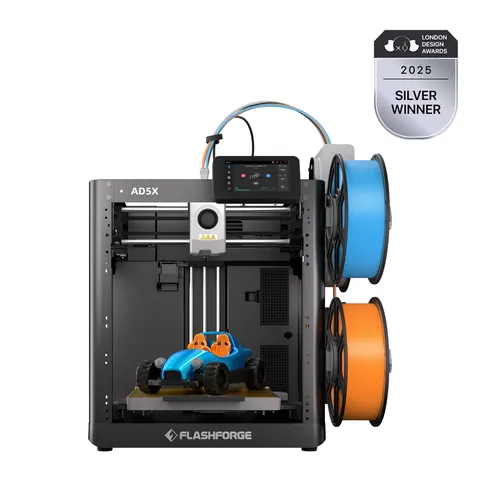
Flashforge’s Adventurer 5M, AD5X, Creator 5, and Creator 5 Pro share a fast, approachable workflow, but they do not use the same toolhead or network setup. This guide turns the practical lessons from Figure Feedback’s Flashforge Adventurer 5M/AD5X/Creator 5 instructional playlist into a model-by-model reference. I also cross-checked the workflow against Flashforge’s official support center and download pages.
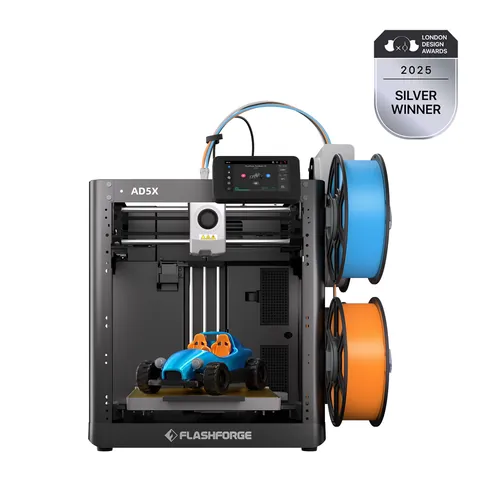
Which Flashforge guide do you need?
| Printer | Best starting point | Important difference |
|---|---|---|
| Adventurer 5M | Wi-Fi or LAN printing, basic maintenance | Quick-release nozzle assembly; open-frame design |
| AD5X | IFS loading, color mapping, LAN mode | Multi-color setup and a different nozzle assembly |
| Creator 5 | Orca Slicer local connection and toolhead care | Four independent toolheads; nozzle work is more involved |
| Creator 5 Pro | Same local API workflow as Creator 5 | Confirm the exact profile and firmware for the Pro model |
Menu names and software support can change with firmware. Treat the paths below as a reliable starting workflow, then use the current manual for your exact firmware version.
Before the first print
- Remove shipping restraints and confirm that the build plate, toolhead, filament path, and power cable are correctly seated. Do not heat the printer while a shipping part or protective film is still in place.
- Connect the printer to power and complete the on-screen startup checks. Run the printer’s automatic leveling or calibration routine before judging a first layer.
- Start with a known PLA profile. PLA is forgiving while you confirm that the nozzle, plate, extrusion path, and slicer profile are working together.
- Install the current printer profile and supported slicer from Flashforge’s download center. Keep the printer firmware and slicer versions aligned when the software specifically requires a minimum firmware release.
Choose Flash Studio, Orca Flashforge, or Orca Slicer carefully
The playlist shows three related routes. Flash Studio is Flashforge’s current software direction; Orca Flashforge is a Flashforge-branded fork found in older workflows; and regular Orca Slicer can be useful when a model profile and local connection are available. They are not interchangeable in every release.
If a printer that used to be online suddenly appears offline after an update, check both sides of the connection before changing settings repeatedly. A newer slicer may require newer printer firmware, while a printer update can invalidate an older connection method. If your existing setup is stable and you do not need a new feature, record your versions before updating.
Adventurer 5M and AD5X: connect over LAN
LAN-only mode keeps the printer and computer on the same local network instead of sending the job through Flashforge’s cloud. It is useful for privacy and as a fallback when a cloud service is unavailable.
- Connect the printer to your Wi-Fi network and confirm that it has an IP address. On the Adventurer 5M, the network information is available from the printer’s information screen; on the AD5X, use the network or Wi-Fi settings.
- Open the printer’s Settings, then the Wi-Fi/Network page. Turn on LAN-only or LAN mode, depending on the model and firmware.
- Wait until the toggle is active and copy the alphanumeric access code shown below it. This is a local access credential; keep it private and do not publish it in a screenshot.
- In the slicer, open the Device page and choose Add printer or the plus icon. Select the printer under another/local device if it is not discovered automatically.
- Enter the printer’s access code. If the slicer asks for the IP address, use the current address shown on the printer. IP addresses can change after a router restart, so recheck it before troubleshooting a failed connection.
- Test the connection, then send a small calibration print. A successful device listing does not replace a first-layer check.
On the AD5X, LAN mode still lets the slicer send a file and expose basic temperatures and status. Camera controls and some monitoring features may remain available only in Flashforge’s official software, depending on the firmware and slicer version.
AD5X multicolor printing with the IFS
The AD5X workflow is easiest when the physical filament order and the slicer’s filament list agree. The printer can load filament into the IFS, but it cannot guess every material and color choice you intend to use.
- Load each spool into an IFS position and feed the filament through the corresponding guide. Let the printer pull the filament through its loading routine.
- In the printer or slicer filament settings, assign the correct material type and color to every occupied position. Keep PLA profiles matched to PLA, PETG to PETG, and so on; a color name alone does not make two materials interchangeable.
- Open a multicolor 3MF project and select the AD5X printer profile before slicing. If the imported project changes the author’s colors, check the slicer’s printer-configuration memory setting and disable it when you need to preserve the project’s existing color assignments.
- Keep a prime tower enabled while you are learning the process. It gives the nozzle a place to stabilize after a color change. It uses extra filament, but it can make early results more predictable.
- Slice the plate, review the color changes, then map each project color to the physical IFS position that contains that material. The slot number is less important than the mapping being correct.
- Level before printing when the option is available, then send the job over LAN or through your signed-in Flashforge connection. Watch the first layers and confirm that the purge behavior is normal.
Regular Orca Slicer can be used for some AD5X workflows, but it may not read the IFS state automatically. In that case, manually recreate the four physical slots in the slicer before slicing. This extra step is the trade-off for using a newer or more general slicer build.
Creator 5 and Creator 5 Pro: connect Orca Slicer locally
Creator 5 models use four independent toolheads, so their local connection has a few more fields than the 5M family. The playlist demonstrates the same principle on the Creator 5 and Creator 5 Pro: the printer, access code, and serial number must all identify the same machine.
- Connect the printer to the local network and turn on LAN mode. Record the printer IP address and the alphanumeric LAN access code.
- Open the printer’s information page and record the serial number. Do not confuse the serial number with the LAN access code.
- In Orca Slicer, enable the Creator 5 or Creator 5 Pro profile, then open the Wi-Fi/printer connection dialog. Use the Flashforge local API or Flashforge host option offered by your build, and select the Orca printer agent when the dialog asks for one.
- Enter the IP address as the host, the LAN access code as the API key or password, and the printer serial number in its dedicated field. Leave optional device UI or CA-file fields blank unless your own installation requires them.
- Run the connection test. After it succeeds, slice a small single-color model and use upload before attempting a long print.
The four toolheads make it possible to choose a loaded filament at upload time. Confirm which color is in each toolhead and choose the matching toolhead in the print dialog. Orca Slicer can handle slicing and sending, while Flash Studio may still provide the more complete official status and camera view.
Nozzle and toolhead service: do not mix the procedures
Adventurer 5M and 5M Pro
The playlist shows these models using a quick-release nozzle assembly. Let the hot end cool, stop the print, and use the two release tabs to pull the nozzle straight down. Push the replacement assembly up into the same opening until it seats securely. If filament is still inside, run the printer’s unload or purge routine first; cutting the filament and pulling on a hot or jammed assembly can leave material in the path.
AD5X
The AD5X uses a different toolhead arrangement. Remove the magnetic front cover, let the nozzle cool completely, remove the silicone sleeve, and open the retaining bracket before removing the nozzle. Reverse the process for installation and confirm that the bracket is fully closed before heating the printer.
Creator 5 and Creator 5 Pro
Creator 5 nozzle service is not the same quick swap. The video shows removing the toolhead’s retaining screws, disconnecting the USB-C cable and PTFE tube when the toolhead must come off, and aligning the replacement nozzle’s contacts before securing it again. Deeper service exposes the fan, cutter, gears, and springs. Work over a clear tray so small screws cannot disappear, and use the official manual for the exact fastener and replacement part.
Safety rule: never reach into a heated toolhead, and never force a nozzle that does not slide or latch as designed. If a part is hot, jammed, or electrically connected, stop and cool or power down before continuing.
Basic maintenance for the Adventurer 5M family
- Wipe dust and loose filament from the plate, under the bed, and around the motion rails with a dry microfiber cloth.
- Inspect the nozzle for baked-on material, especially after sticky materials. Use the printer’s heating and cleaning procedure rather than scraping a cold nozzle aggressively.
- Lubricate the motion rails only with a compatible, small amount of lubricant specified by the manual. Excess grease attracts dust.
- Keep the build plate clean and avoid touching the print surface immediately before a job.
- Check the PTFE path and spool holder for sharp bends or drag before diagnosing under-extrusion.
Common connection and print problems
| Symptom | First checks |
|---|---|
| Printer disappeared after an update | Compare slicer and firmware versions; update the other side only after checking Flashforge’s current requirement. |
| LAN printer is offline | Confirm the printer IP, LAN toggle, access code, and that the computer is on the same network. |
| AD5X colors are wrong | Recheck material/color assignments, physical IFS positions, and imported 3MF printer configuration. |
| First layer fails | Clean the plate, rerun leveling, verify the correct nozzle and material profile, and watch the first layer. |
| Filament will not feed | Unload safely, inspect the PTFE path and toolhead gears, and do not push flexible filament through an obstruction. |
Official references and video source
Use the Flashforge Support Center for manuals, maintenance, firmware, and model-specific error codes. The download hub is at Flashforge Download Center. The practical demonstrations summarized here are from Figure Feedback’s public playlist; interface labels and firmware behavior may change after the videos were published.
When you are ready to compare current models or accessories, check the Flashforge store for the latest availability and regional pricing.